Zscaler and its SSE offering is a powerful platform that helps secure users as they connect their applications whether they are on premises or in the cloud. The power of Zscaler can’t be achieved unless traffic if forwarded into the cloud. In today’s blog we will look at how to set up Meraki Systems Manager to install a managed instance of Zscaler Client Connector
To begin our first step is to add the Zscaler Client Connector Application in the Meraki Dashboard. In Dashboard go to Systems Manager > Manage >Apps.
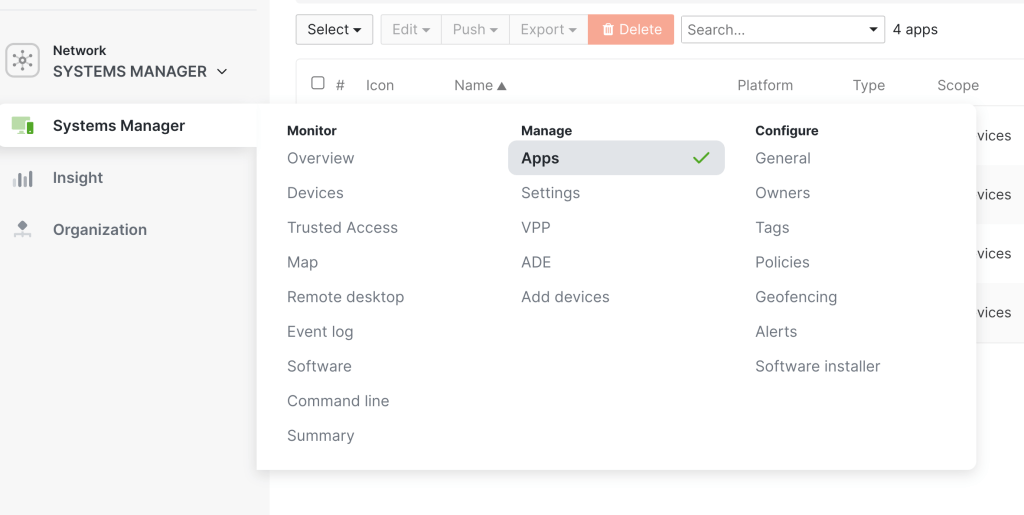
Click Add app
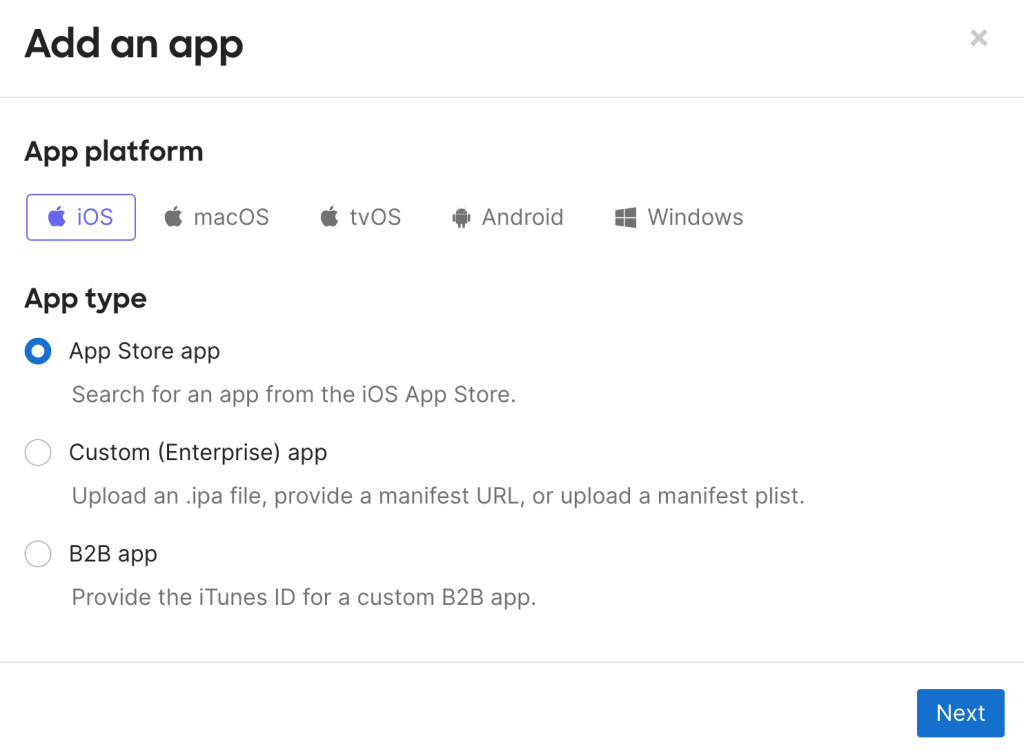
Select iOS and Select the Radio button for App Store App and Click Next
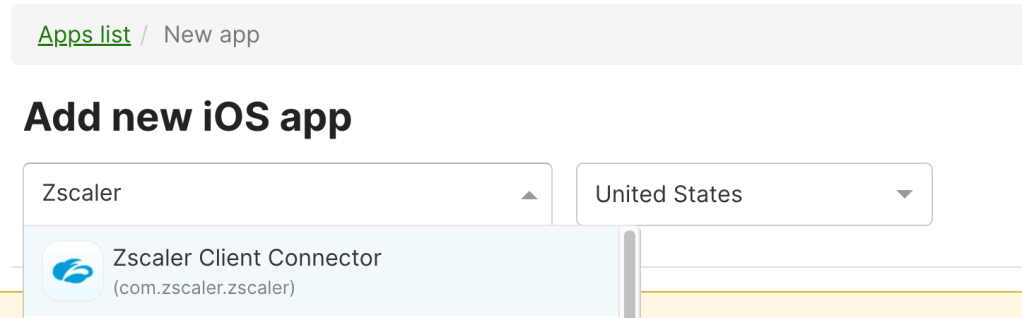
Search and Select Zscaler Client Connector
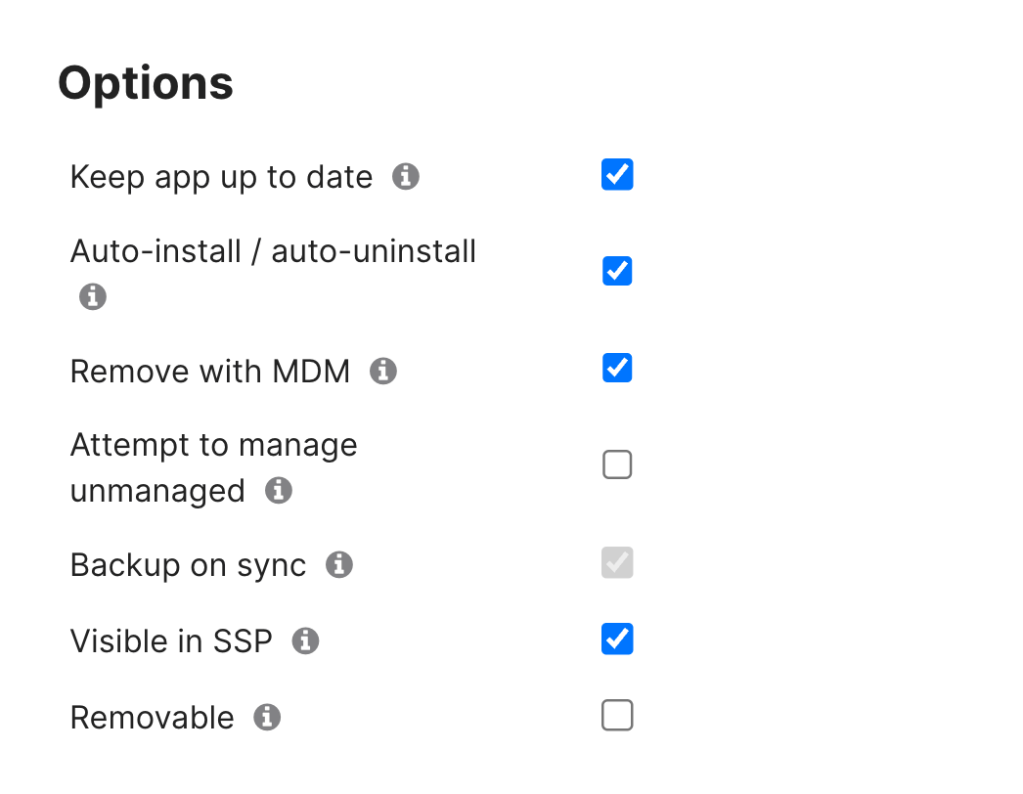
Optional but recommended: Check the following: Keep app up to date, auto-install / auto-uninstall, remove with MDM. Unselect removable
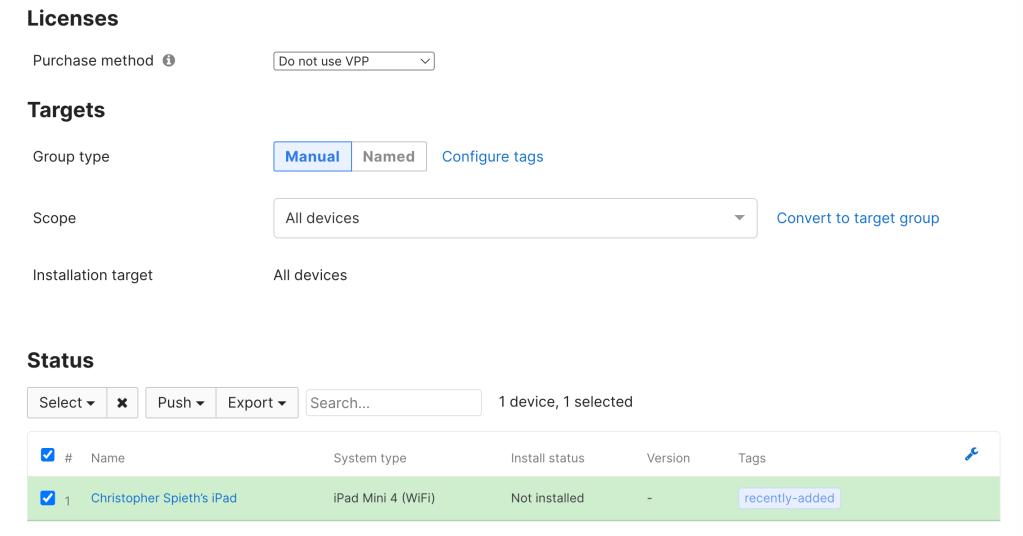
The next section will be based off your deployment model. If you use VPP I would recommend using VPP for the deployment. Note if using VPP you will import the app from VPP instead of adding the app. For this deployment I will not be using VPP.
Targets will also be up to administrator discretion. For this deployment I will target all devices. Click Save.
The Zscaler Application has the ability to be managed during installation on devices to make it easier for users to connect to Zscaler. To do this we can use Meraki device profiles.
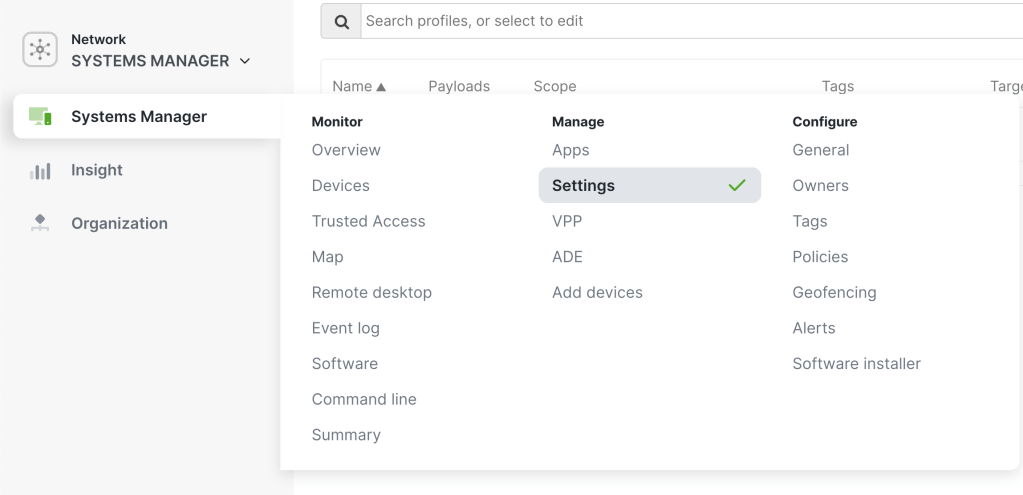
In Systems Manager go to Systems Manager > Manage > Settings
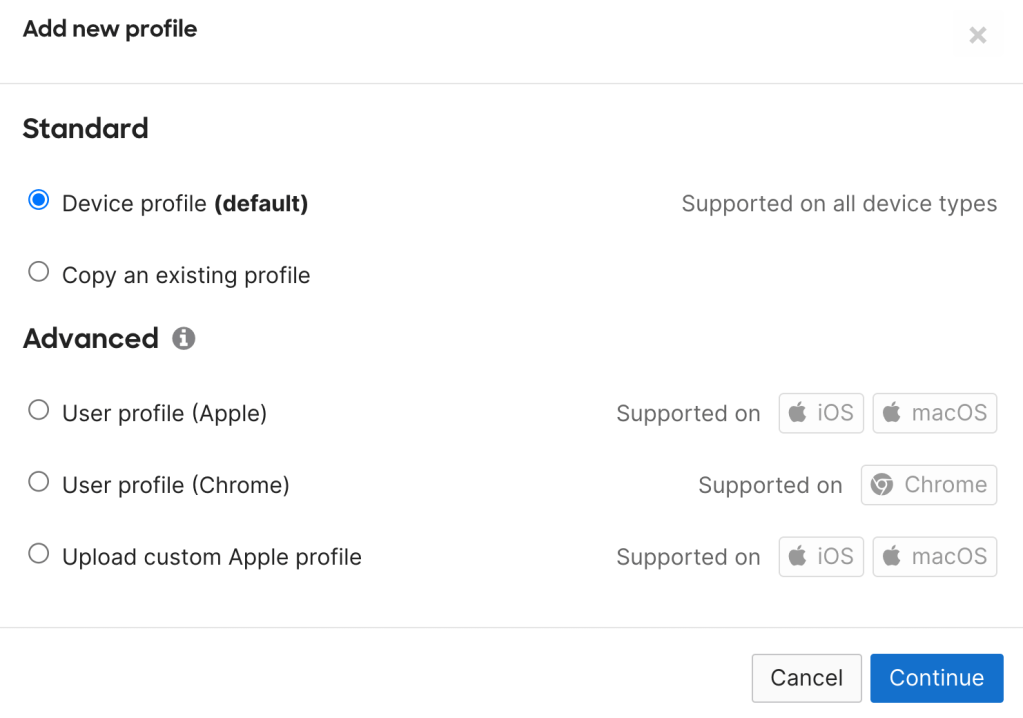
Click Add Profile and Select Device Profile (default)
Click Continue
On the Profile Configuration Page, Name your Profile, add a description and set your scope to the desired clients you want to add the client connector. For this scope I will set it as all devices.
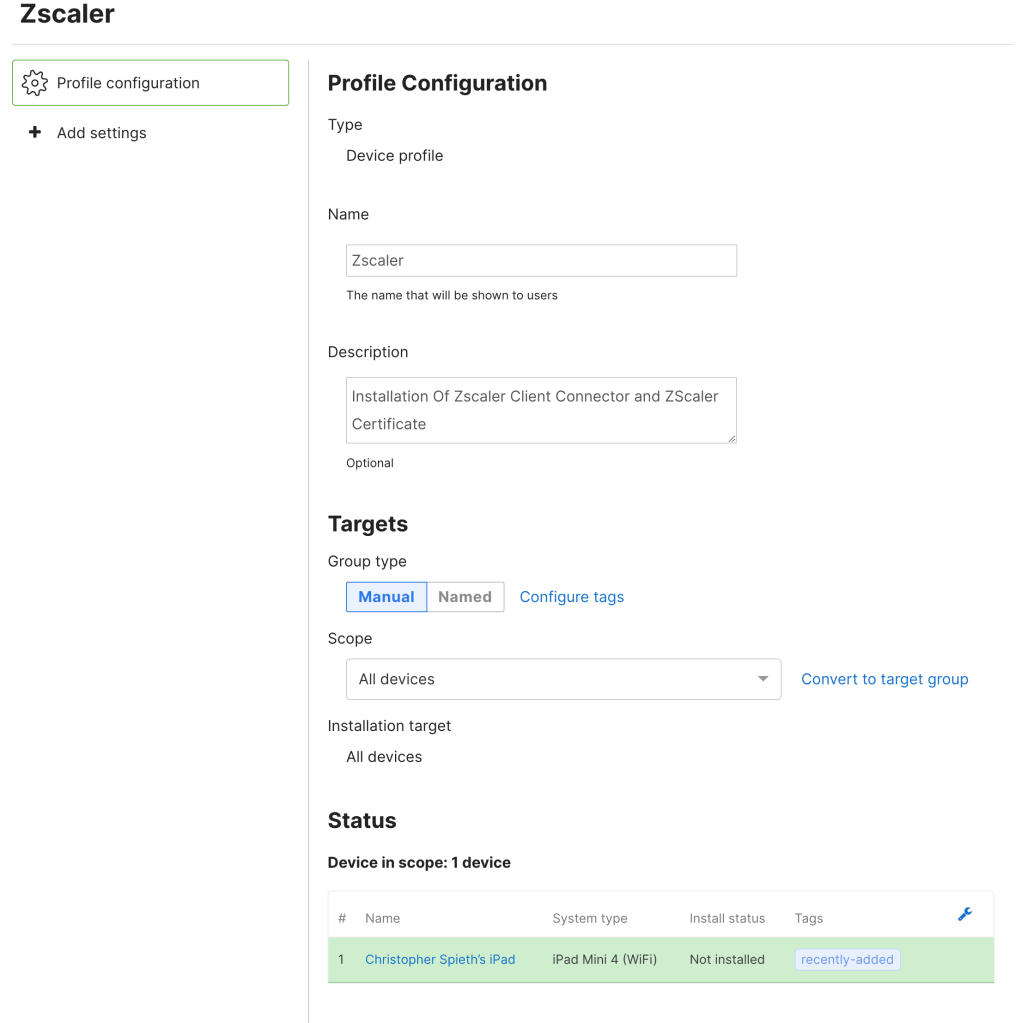
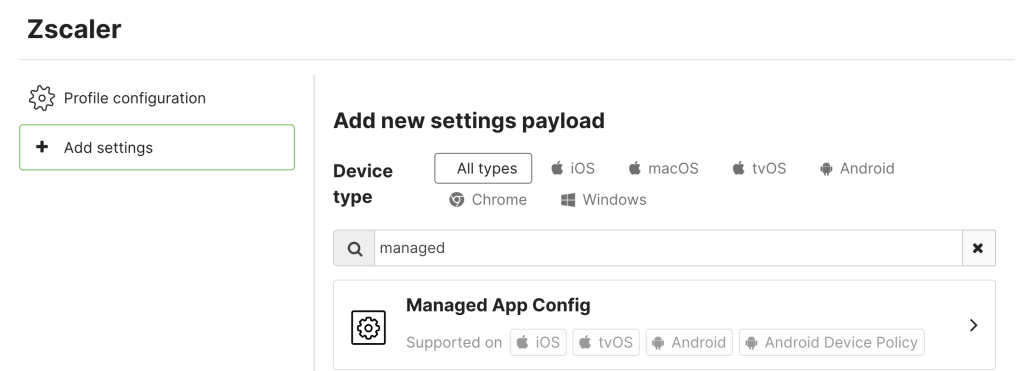
Click Add Settings, Search for Managed App Config and Select It
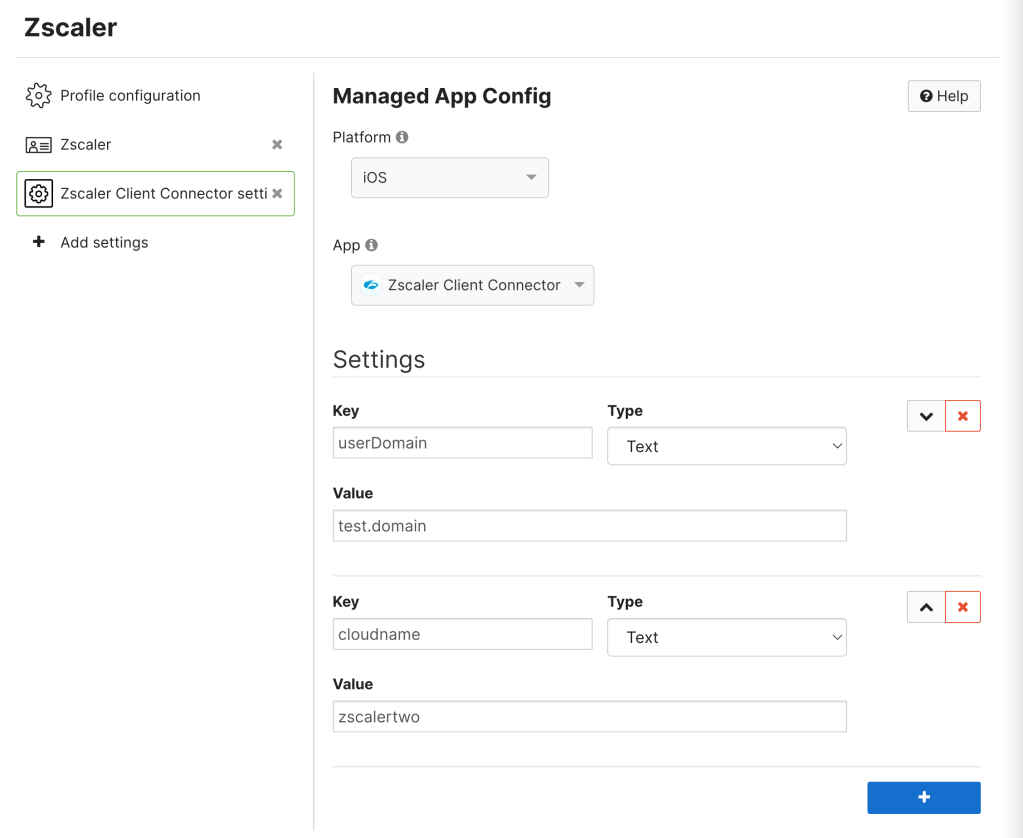
In Managed App Config Click Select Platform and Select IOS.
Under App Select Zscaler Client Connector which will open up the settings section below. This is where the managed config is configured. There are a variety of options that can be configured in this section depending on the environment. The Type section for each key will be Text.
For ease of use for end user it is recommended to at least specify the user domain and the cloud name.
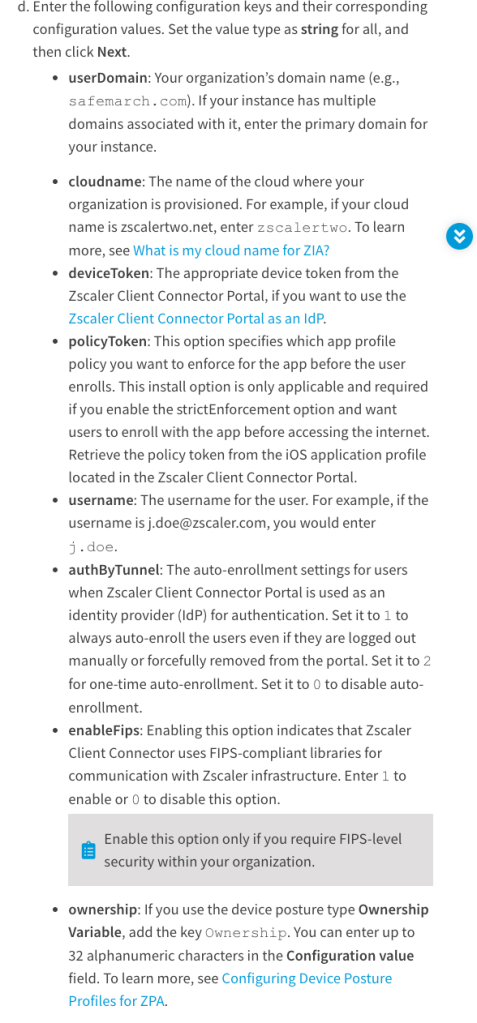
Below is a screenshot from the Zscaler Help Website for all the options that can be configured for Managed App Configuration. The full document can be found here. For environments with strict enforcement policies I will have a future blog to address this.
One of the great features Zscaler offers is full inline SSL inspection. This feature does require the Zscaler SSL Certificate to be installed on the end devices.
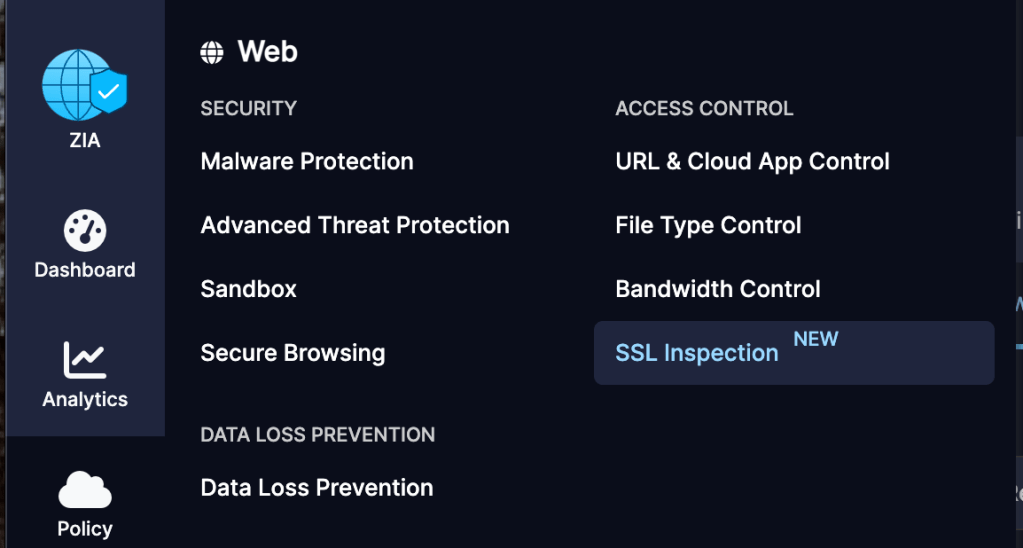
In Zscaler ZIA go to Policy > Access Control > SSL Inspection
Select Intermediate CA Certificates
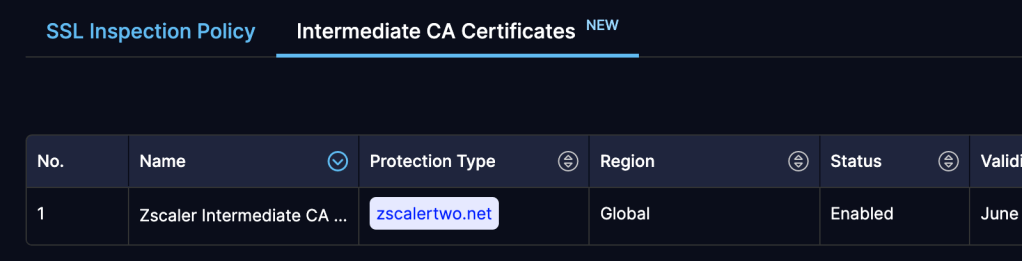
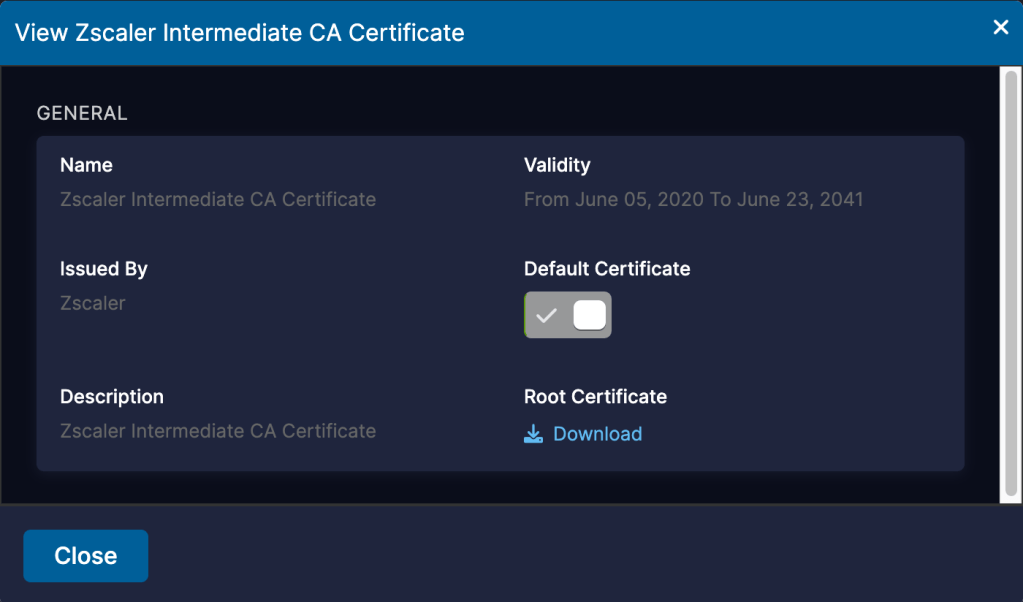
Click the Pencil on the Zscaler Intermediate CA which will open the View Page. Click download root certificate. Save the certificate and click close.
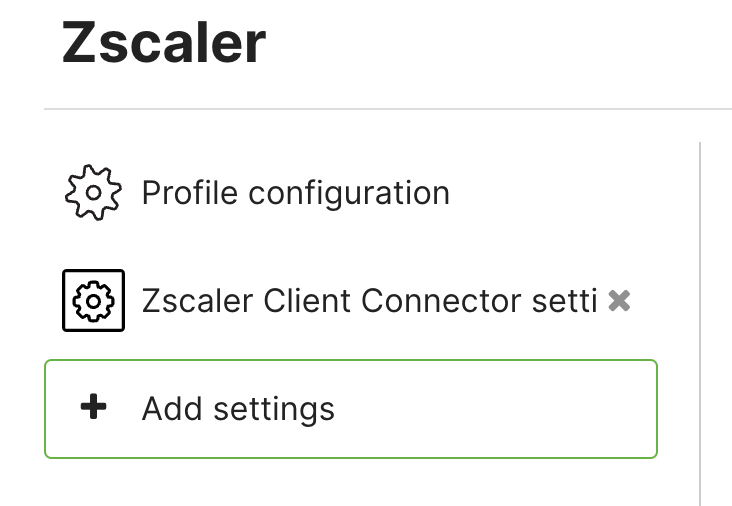
Back in the Meraki Dashboard go back to the Zscaler profile created earlier and click add Settings
Search for Certificate and Select Certificate
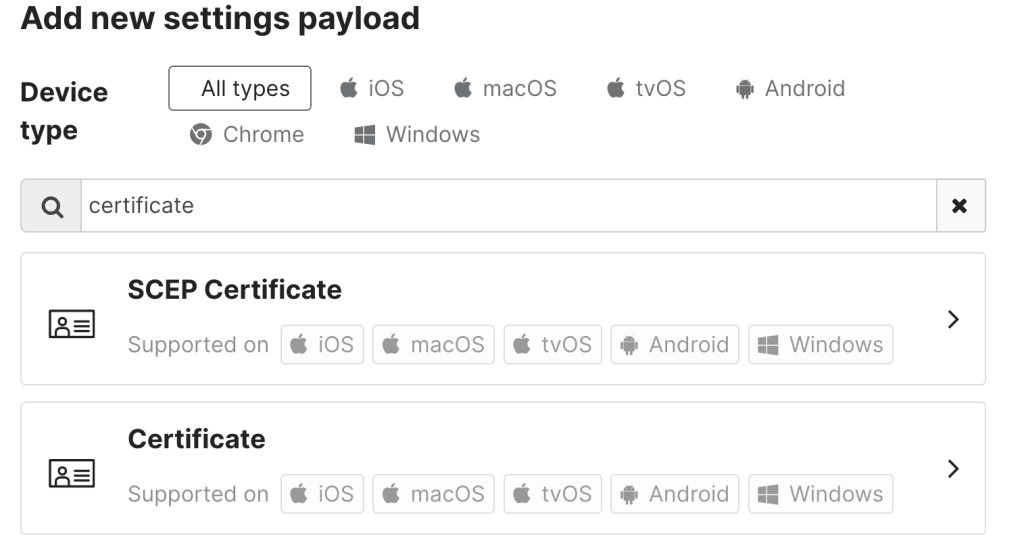
Name the Certificate and for Cert Store Select System.
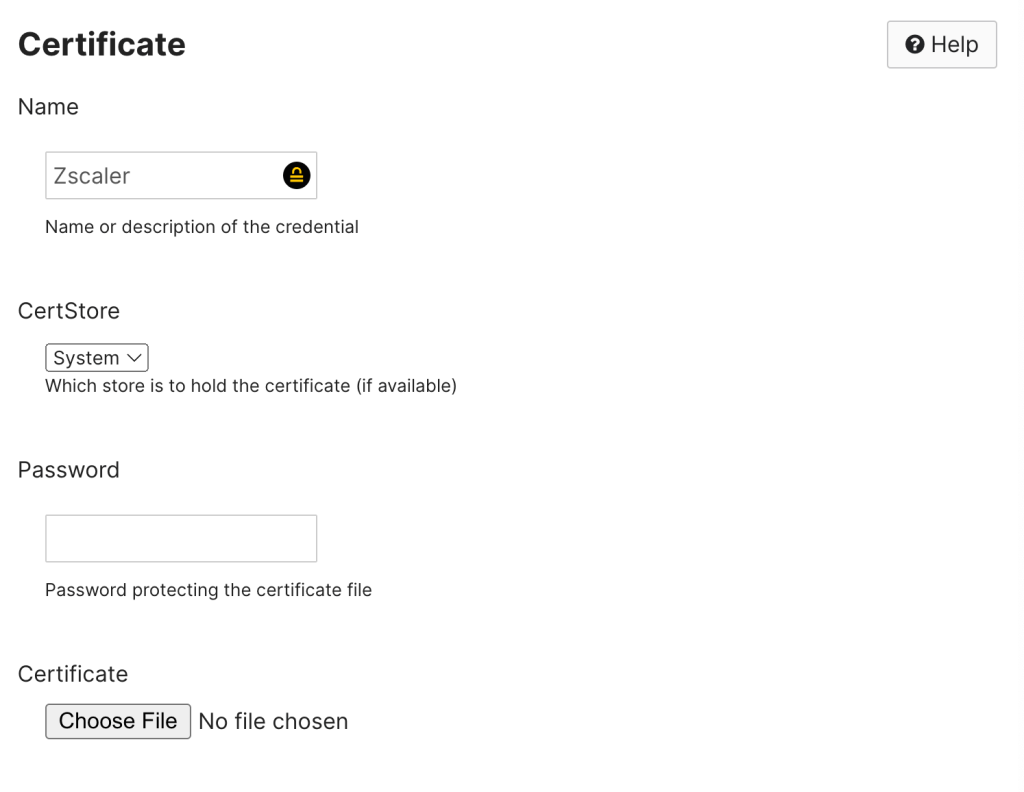
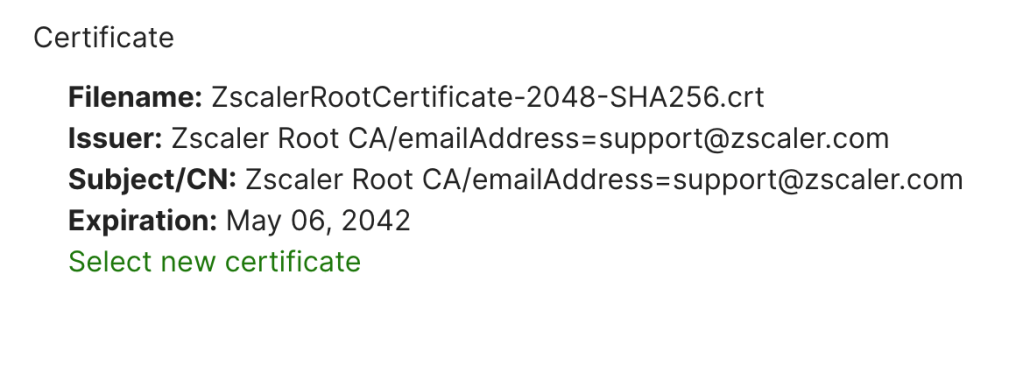
Click Choose File and Select the Zscaler Root Certificate downloaded from earlier. Click save.
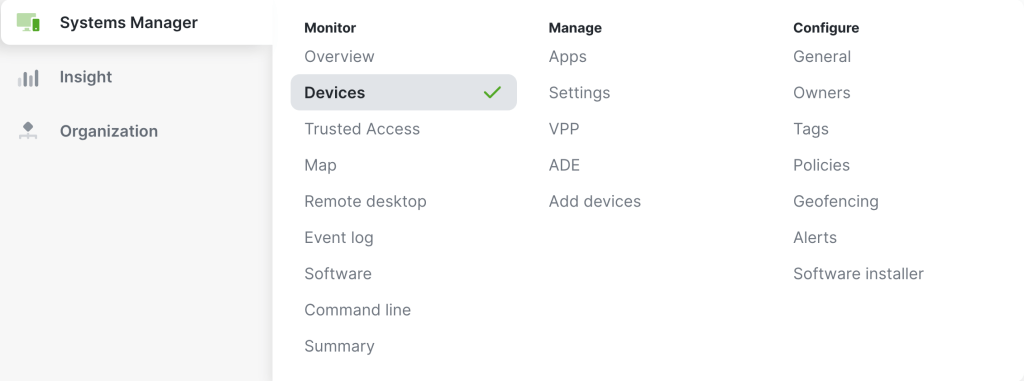
To verify installation go to Systems Manager > Monitor > Devices
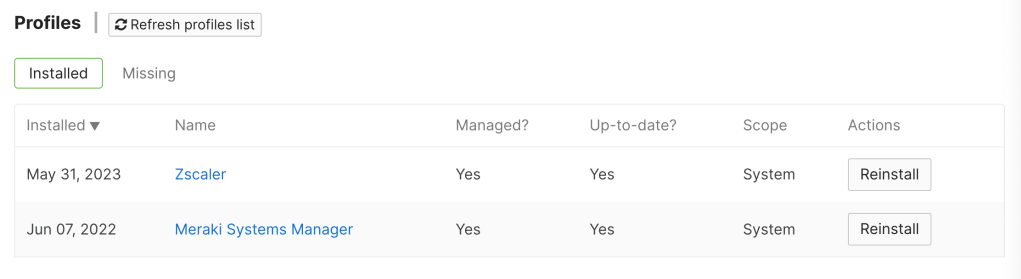
Select a Device in Scope then scroll to profiles. The Zscaler Profile will be installed.
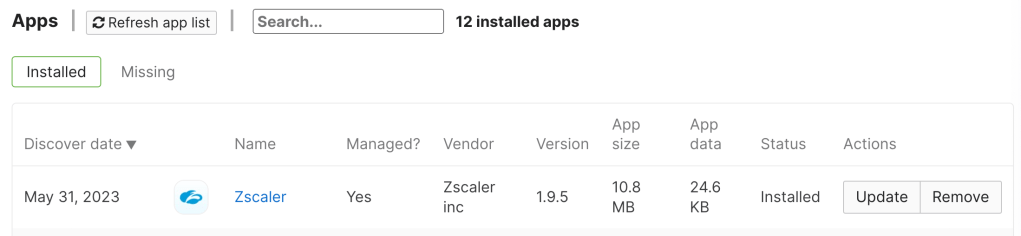
The Next Section Apps will show the Zscaler App is Installed.
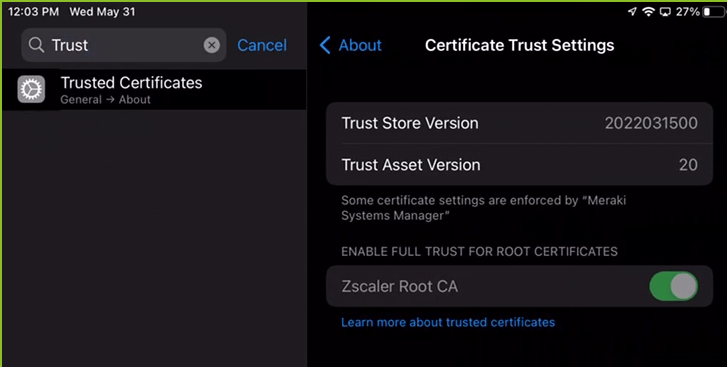
For End Users they Will Now See the Zscaler App and the Root Certificate Will Be installed. This Can be verified by going into settings and Searching Trusted Certificates.
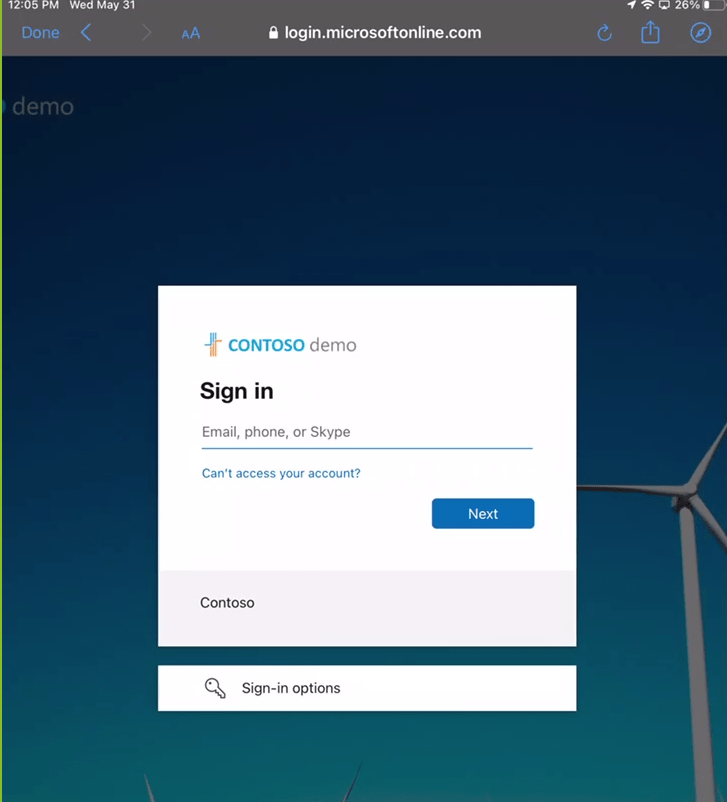
Users can login to Zscaler by tapping on the app. Depending on the configuration setting applied will determine the User Experience. For this example the User Domain and Cloud Name were defined and the user has been redirected to Azure SSO for Login
After Login the User will be asked to add vpn connections. Tap Allow.
The Zscaler App should now show the service status is on for Internet Access and Private Access if you have those Services.
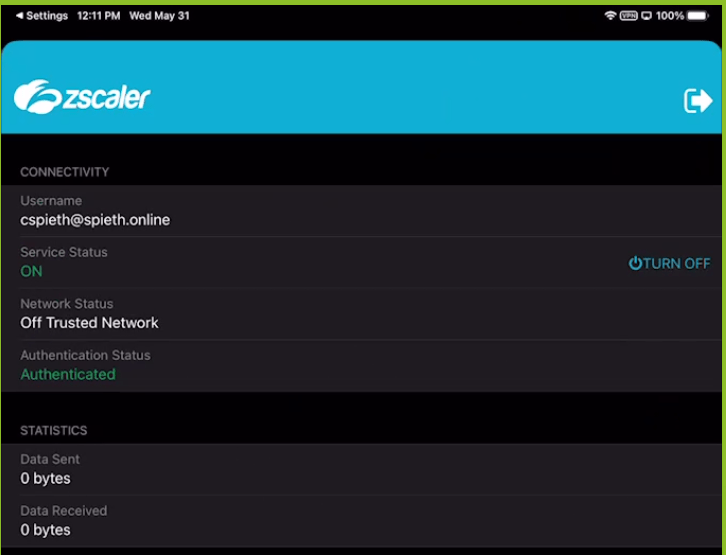
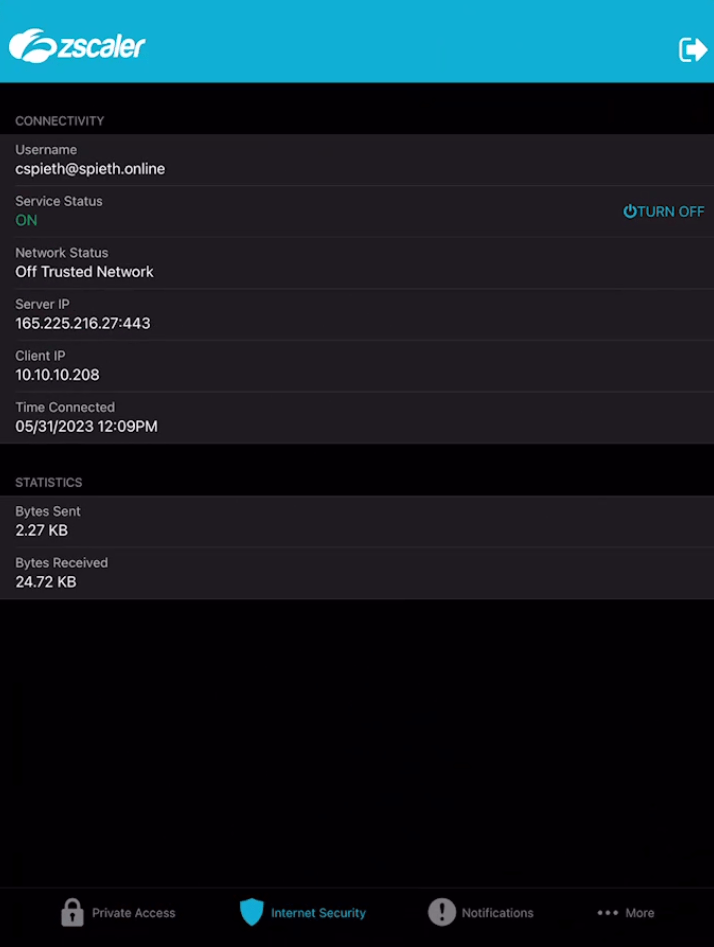
It is recommended to now test out some websites and applications. for verification as applications may not work with SSL inspection due to certificate pinning. For recommendations on applications to bypass SSL inspection for certificate pinning click here.
 Spieth On Security
Leave a comment